How to Track Form Submissions in GA4 (A Practical Guide for Small Business Sites)
If your website has a contact form, a quote request, or a booking form, that form is probably your most valuable button. So it's worth knowing whether GA4 is actually counting the people who use it.
A lot of small business owners assume GA4 tracks this automatically because they turned on "Enhanced Measurement." Sometimes it does. Often it doesn't — and you only find out months later when the numbers look wrong.
This guide walks through three ways to track form submissions in GA4, how to pick the one that fits your form, and how to confirm it's working before you trust the data. You don't need to be a developer. Two of the three methods need no code at all.
Why GA4's automatic tracking usually isn't enough
When you switch on Enhanced Measurement, GA4 tries to track form activity on its own. It can create two events: form_start (someone begins filling in a field) and form_submit (someone submits).
That sounds like it solves everything. In practice, the form_submit event is the unreliable one.
It usually works for plain HTML forms that reload the page when sent. The trouble is that most small businesses don't use those. They use forms that submit in the background without reloading (these are called AJAX forms), or forms embedded from another tool inside a frame — and those often slip straight past the automatic setting.
So if you run your forms through a plugin, a website builder, or an embedded widget, there's a real chance your submissions aren't being counted. That's not something you set up wrong — it's a known limit of automatic tracking. The fix is to create the event yourself, so you control exactly what counts.
How to check what you have right now
Before changing anything, see what GA4 is already recording:
- In GA4, open Reports → Engagement → Events.
- Look for
form_submitin the list. - Compare the count to the number of real inquiries you actually received in the same period.
If form_submit isn't there, or the number is clearly too low (or suspiciously high), don't trust it. Set up one of the methods below instead.
Before you start: a few decisions
Two quick questions decide which method you'll use.
1. What happens after someone submits your form?
- It sends them to a separate "thank you" page → use Method 1.
- It stays on the same page and shows a "Thanks, we'll be in touch" message → use Method 2 or 3.
2. Do you have Google Tag Manager (GTM) installed?
Method 1 works with GA4 alone. Methods 2 and 3 use GTM. If you don't have GTM and your form already redirects to a thank-you page, you can skip GTM entirely.
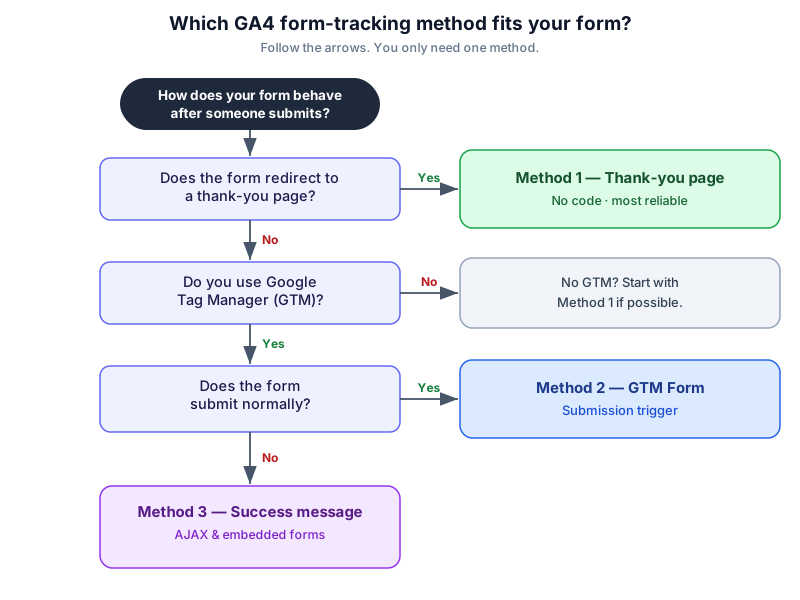
Here's the short version as a decision rule:
- Form redirects to a thank-you page → Method 1 (no code, most reliable).
- No redirect, standard form, you have GTM → Method 2.
- No redirect, AJAX or embedded form → Method 3.
Method 1 — Track the thank-you page (easiest, no code)
This is the most dependable method, and it needs no GTM and no code. The trick is simple: if every successful submission sends the visitor to a unique page, then a visit to that page is a submission.
Step 1: Give your form a dedicated thank-you URL
Set your form to redirect to a page that nothing else links to, for example yoursite.com/thank-you-contact. Most form tools and website builders let you set a redirect URL in the form's confirmation settings.
The page only needs to exist and have a unique address. Keep it off your menu so the only way to land there is by submitting the form.
Step 2: Create the event in GA4
- Go to Admin → Data display → Events.
- Click Create event → Create.
- Name it something clear like
generate_lead. - Set the matching condition:
event_nameequalspage_view, andpage_locationcontainsthank-you-contact. - Save.
Now every time someone reaches that page, GA4 records a generate_lead event.
A note on the name: generate_lead is one of Google's recommended event names for exactly this situation, so it's a sensible default. You could call it contact_form_submit if that's clearer for you — just pick one name and use it consistently across every form.
Step 3: Mark it as a key event
An event on its own is just a count. To treat it as a goal (what GA4 now calls a key event, the feature older guides call a "conversion"):
- Go to Admin → Data display → Key events.
- Click New key event and type the exact event name,
generate_lead. - Save.
From now on, that submission shows up as a key event in your reports.
Method 2 — GTM Form Submission trigger (standard forms, no redirect)
Use this when your form stays on the same page and you have Google Tag Manager installed.
Step 1: Turn on the form variables
GTM hides its form-related variables by default.
- In GTM, open Variables → Configure.
- Tick the Forms group (Form ID, Form Classes, Form Element, and so on).
Step 2: Create the trigger
- Go to Triggers → New → Form Submission.
- Start with "All Forms" while testing. You can narrow it to one form later using the Form ID once you know it.
Step 3: Send it to GA4
- Go to Tags → New → Google Analytics: GA4 Event.
- Enter your Measurement ID (or select your configured Google tag).
- Set the event name to
generate_lead. - Attach the trigger from Step 2.
- Don't publish yet — test it first (see the verification section).
One caveat: the Form Submission trigger relies on GTM detecting the browser's native submit event. Some forms cancel or replace that event, so the trigger silently never fires. If you test it and nothing happens, that's your signal to use Method 3.
Method 3 — Success message / AJAX and embedded forms
This covers the forms that break the other two methods: forms that show an inline "Thank you" message without reloading, and forms embedded from another tool.
The idea changes here. Instead of listening for a "submit," you listen for proof of success — usually the success message appearing on the page.
You have two practical options:
- Element Visibility trigger (GTM): Create a trigger of type Element Visibility that fires when the success message element becomes visible (you select it by its CSS ID or class). Point the same GA4 Event tag at it. This is the most common fix for AJAX forms.
- dataLayer event: Some form tools push a custom event to the dataLayer on success. If yours documents one, create a Custom Event trigger that matches it. This is the cleanest option when it's available.
Embedded forms inside a frame are the hard case. When a form lives in an iframe from another service, your GTM container often can't see inside it, so none of these triggers fire. The realistic move is to stop fighting it: turn on a redirect to a thank-you page on your own site and switch to Method 1. It's less elegant, but it works.
Verify it before you trust it (don't skip this)
A tracking setup you haven't tested is a guess. Two free tools confirm it in a few minutes.
Check the firing in GTM Preview
- In GTM, click Preview and enter your site URL.
- In the new tab, fill in and submit your form for real.
- In the Preview panel, confirm your tag fired — once, not zero times and not twice.
Firing zero times means the trigger doesn't match your form. Firing twice means you'll double your numbers; usually there are two triggers doing the same job, or the page reloaded and re-fired.
Confirm the event lands in GA4 DebugView
GTM Preview turns on debug mode, so your test traffic flows into DebugView automatically.
- In GA4, open Admin → DebugView.
- Submit your form again.
- Within a few seconds you should see your
generate_leadevent appear in the timeline. - Click it and check the parameters look right.
If it shows in DebugView, your setup is live. One thing to expect: standard reports (Reports → Engagement → Events) lag behind by roughly 24–48 hours, so don't panic if the count there is still zero right after setup. DebugView is your real-time proof.
You can also use GA4 Realtime as a quick sanity check during testing. The screenshot below shows a test generate_lead event after submitting a temporary test form, not a real customer inquiry.
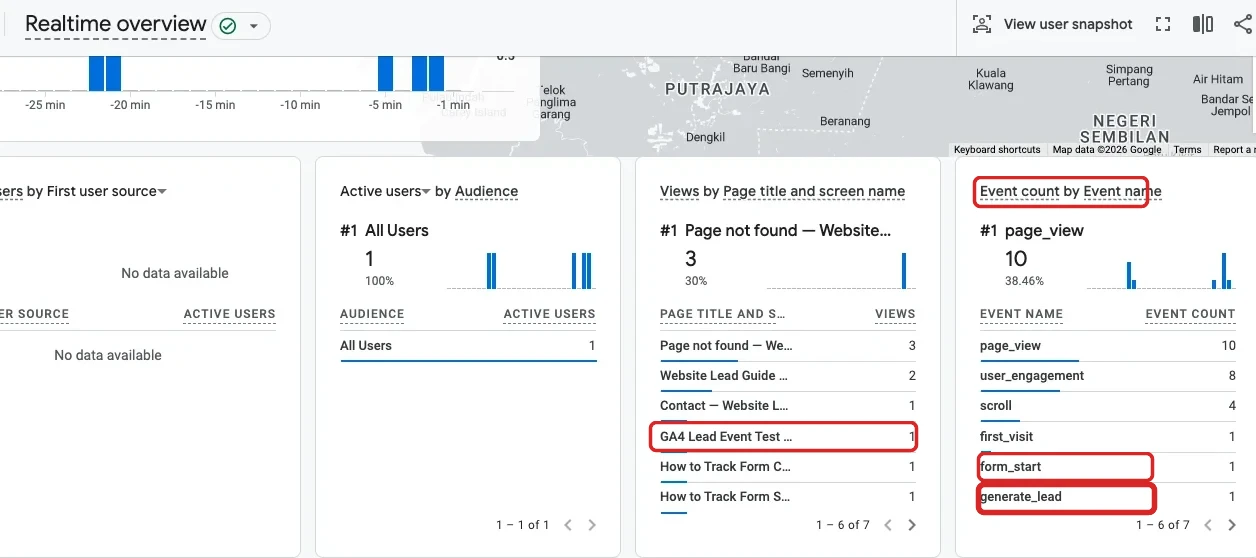
generate_lead (your form submission) and form_start events.After GA4 has collected the test event, it can also appear in the Events area. This is still a test form submission, and standard reports may take time to update depending on your property and reporting delay.
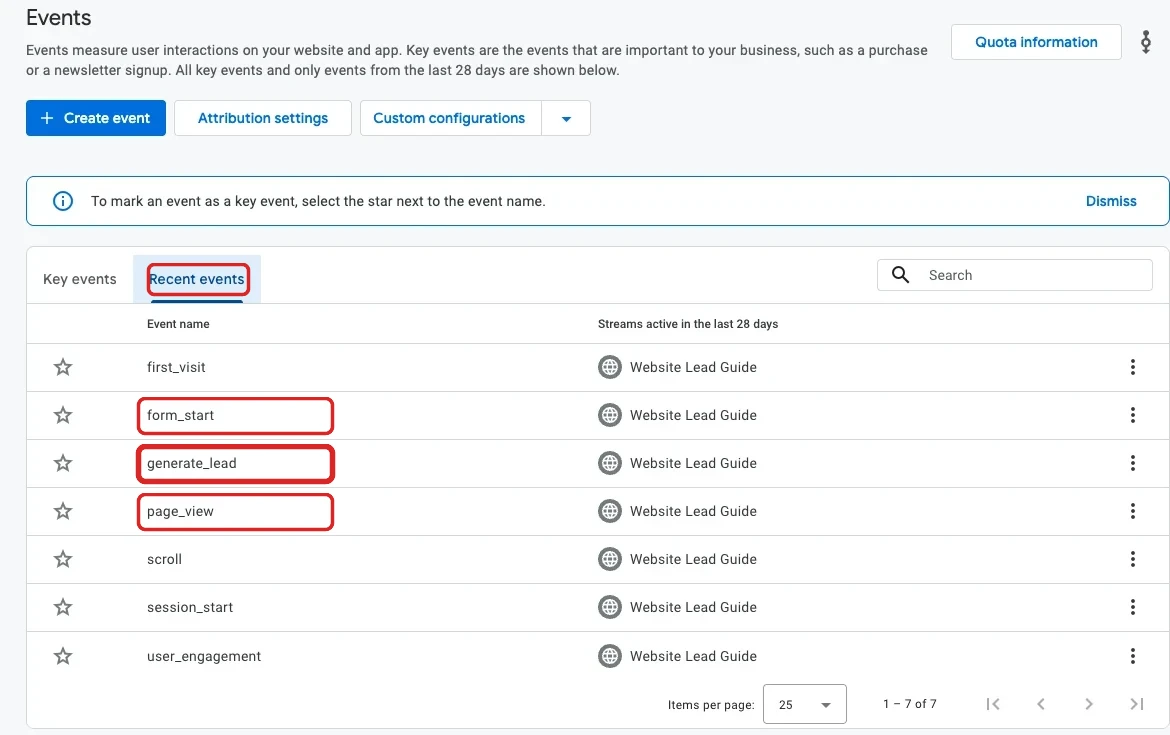
generate_lead (your form submission), form_start, and page_view events.Why your numbers can still be off
Even a correct setup won't give you a perfect count, and it's better to know why than to be surprised later. Common reasons your tracked number won't match reality:
- Cookie consent and Consent Mode. If a visitor declines analytics cookies, or your consent banner blocks tags until they accept, some submissions won't be recorded. This varies by region and by how your banner is set up.
- Ad blockers and privacy browsers. A share of visitors block analytics outright. You can't track those, full stop.
- Duplicate firing. Two triggers, or a page reload, can record one submission as two. Catch this in GTM Preview.
- AJAX and embedded forms. As covered above, these are the usual culprits behind undercounting.
- Test submissions. Your own testing inflates the count. Set up a GA4 internal traffic filter (Admin → Data settings → Data filters) so your own test runs are excluded.
- Spam submissions. Bots can both inflate analytics and clog your inbox. If spam is heavy, the form tool's own spam log is a better reality check than GA4.
Treat the number as a reliable trend you can compare month to month, not as an exact headcount.
Common mistakes to avoid
- Trusting the automatic
form_submitevent without ever checking it against real inquiries. - Building the event but forgetting to register it as a key event, so it never appears as a goal.
- Using a different event name on every form, which makes the totals impossible to read. Pick one name.
- Publishing the GTM tag before testing in Preview.
- Counting your own test submissions and then wondering why the numbers look high.
What to do once it's tracked
Counting submissions is step one. The point of tracking is to act on it: to see which pages and channels bring real inquiries, to spot when a form quietly breaks, and to organize and follow up with the people who reach out.
Keep the checklist open while you set this up
Setting this up now? Save the one-page checklist version of these steps so you can tick them off as you go — including the DebugView check, which is the one people skip.
GA4 Form Tracking Setup Checklist
A one-page checklist that walks you from "which method fits my form?" to the DebugView check — the step most people skip.
Frequently asked questions
Can GA4 track every contact form automatically?
Not reliably. Enhanced Measurement catches some standard forms, but forms that submit without reloading the page (AJAX) or that are embedded from another tool often slip past it. That's why it's worth creating the event yourself and verifying it, as covered above.
Should I use generate_lead or form_submit?
For a contact, quote, or booking form, generate_lead is a sensible choice — it's one of Google's recommended event names for this. The more important rule is to pick one name and use it consistently on every form, so your totals stay readable.
How long does it take for events to appear in GA4?
DebugView and Realtime show your test event within seconds. Standard reports (Reports → Engagement → Events) usually lag by roughly 24–48 hours, so don't worry if the count there is still zero right after setup.